Presentation 1402.08.27
Introduction
As we saw in Deep learning with python book, a simple layout for a deep learning project looks like the code below:
from tensorflow.keras.datasets import mnist
from tensorflow import keras
from tensorflow.keras import layers


# prepare data
(train_images, train_labels), (test_images, test_labels) = mnist.load_data()

train_images = train_images.reshape((60000, 28 * 28))
train_images = train_images.astype("float32") / 255
test_images = test_images.reshape((10000, 28 * 28))
test_images = test_images.astype("float32") / 255


# define our model
model = keras.Sequential([
    layers.Dense(512, activation="relu"),
    layers.Dense(10, activation="softmax")
])

model.compile(optimizer="rmsprop",
            loss="sparse_categorical_crossentropy",
            metrics=["accuracy"])

# train our model
model.fit(train_images, train_labels, epochs=5, batch_size=128)

# test our model
test_loss, test_acc = model.evaluate(test_images, test_labels)
Note
In this presentation, I try to show you how to:
Load a notebook from github directly to google colab
Get data from Kaggle
Transfer learning
Load notebooks from github to colab
To load a notebook from github
directly to google colab,
first we should press Ctrl+O (open notebook).
Then in the github tab, we can copy the address of the repository
that contains the notebooks that we want to load. After that,
a list of notebooks will show up and we can select the one that we
wanted. One example is provided below:
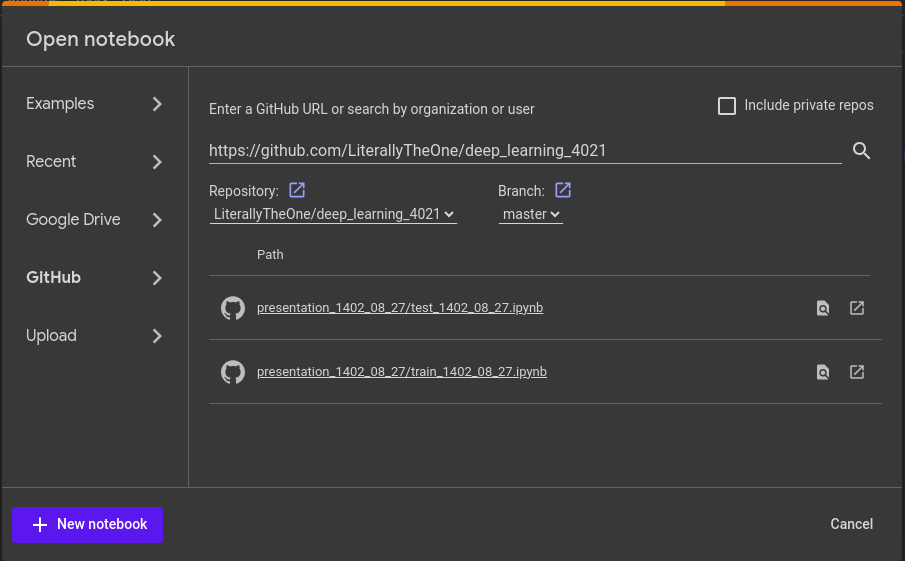
In this presentation, I’m using the codes provided in https://github.com/LiterallyTheOne/deep_learning_4021 repository.
Load data from Kaggle to google colab
Sign up to Kaggle
To load data from Kaggle to google colab, first we should have an account in kaggle. To do so we can go to https://www.kaggle.com, Then select the register button on top right of the window. After that, we can use our gmail to register to kaggle.
Kaggle api token
After we registered successfully, we should get our api token. To get that token, we should go to settings Then in api section, click on create new token. This would give you a json file containing your username and key. Something like this:
{"username":"your_username","key":"your_key"}
Create a new secret in google colab
First, We should open up google colab. Then in the left bar
there is a button that looks like a key, we should click on it.
After that a side bar will pop up that we sould select
Add new secret. For the Name, choose Kaggle and for the
Value copy all the content of the json file that you took from
the previous section. After doing that, you should have something like this:

Use kaggle CLI to download data
To be able to use Kaggle’s api, we need to copy our api token
that we already put it in the google colab secrets to
/root/.kaggle/kaggle.json. To do so, we use the code below:
# imports
from pathlib import Path
from google.colab import userdata

kaggle_target_path = Path('/root/.kaggle/kaggle.json')

# make parent directory
kaggle_target_path.parent.mkdir(exist_ok=True, parents=True)

# write the content of our secret to that file
with open(kaggle_target_path,'w') as f:
    f.write(userdata.get('Kaggle'))
After successfully writing our Kaggle’s api token to the target file, we are ready to use Kaggle’s api. For example to download a dataset we can use the code below:
! kaggle datasets download -d marquis03/fruits-100
Note
more information in https://github.com/Kaggle/kaggle-api
Transfer learning
Transfer learning is a technic that we are using a pretrained model, on a new dataset with different purpose.
Train stage
Open the notebook below in colab:
Test stage
Open the notebook below in colab: